
Summary
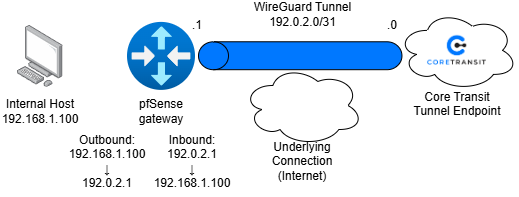
This article demonstrates how to configure pfSense as a WireGuard client for the Core Transit Static IP Service. Upon completion, all LAN client traffic will be routed through the Core Transit WireGuard tunnel using Policy-Based Routing (PBR), while pfSense continues to manage routing decisions through its standard interface configuration.
This deployment method provides a secure full-tunnel configuration for client devices while maintaining a simple and scalable firewall policy.
Diagram
Prerequisites
- pfSense installed
- DHCP server enabled and configured for LAN clients
- Active Internet connection
- WireGuard provisioning details provided by Core Transit
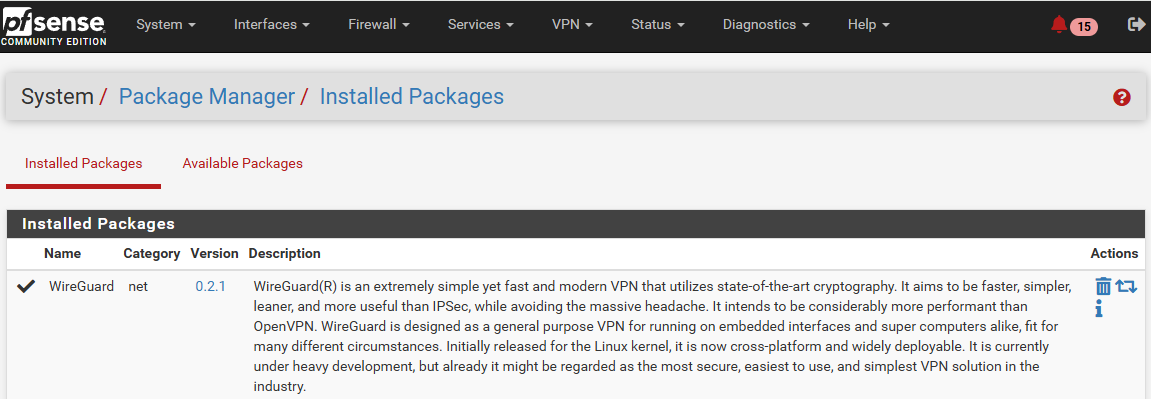
Install the WireGuard Package
Navigate to:
System → Package Manager → Available Packages
Find and install the WireGuard package.
Create the WireGuard Tunnel
Navigate to:
VPN → WireGuard → Tunnels
Create a new tunnel.
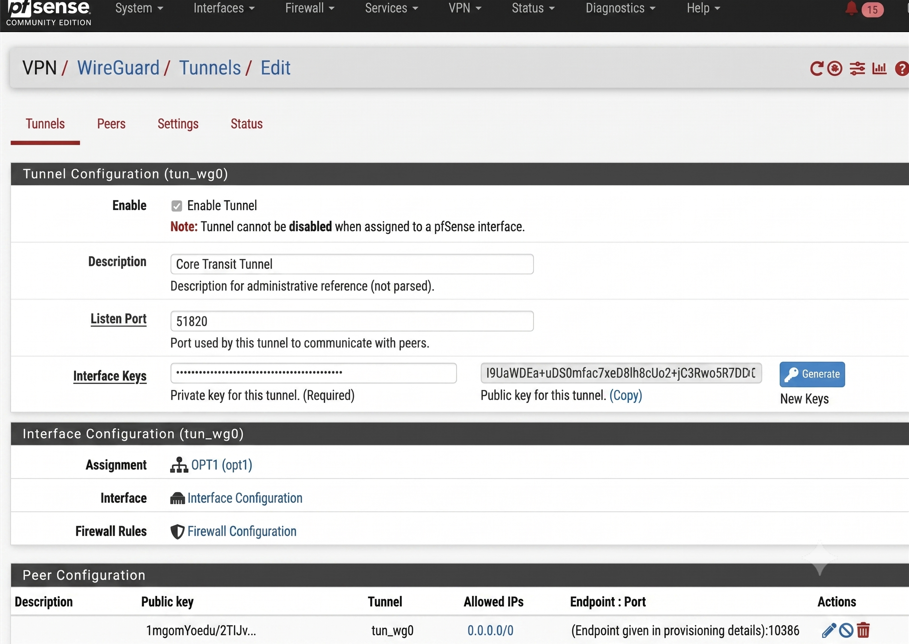
Configure the tunnel using the provisioning details provided by Core Transit.
Settings include:
- Description
- Private Key
- Listen Port
- Tunnel Address
Save the tunnel.
The configuration page should look something like this:
Configure the WireGuard Peer
Navigate to:
VPN → WireGuard → Peers
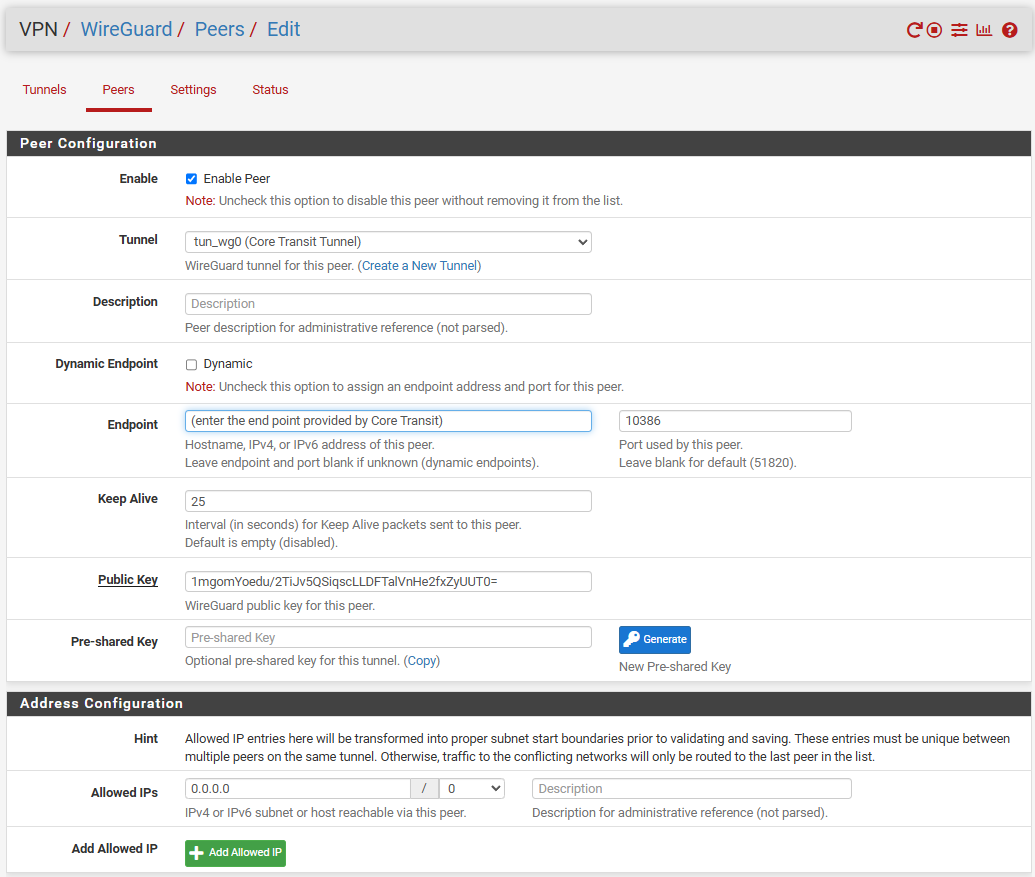
Create a new peer using the Core Transit provisioning details.
Configure:
- Peer Public Key
- Endpoint Address
- Endpoint Port
- Allowed IPs
- Persistent Keepalive (25 seconds)
Save the configuration.
Assign the WireGuard Interface
Navigate to:
Interfaces → Assignments
Assign the newly created WireGuard tunnel (tun_wg0) as a new interface.
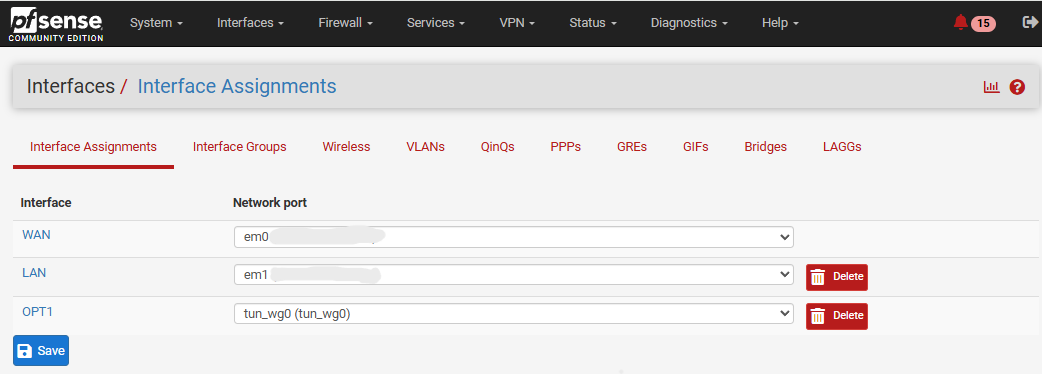
Configure the WireGuard Interface
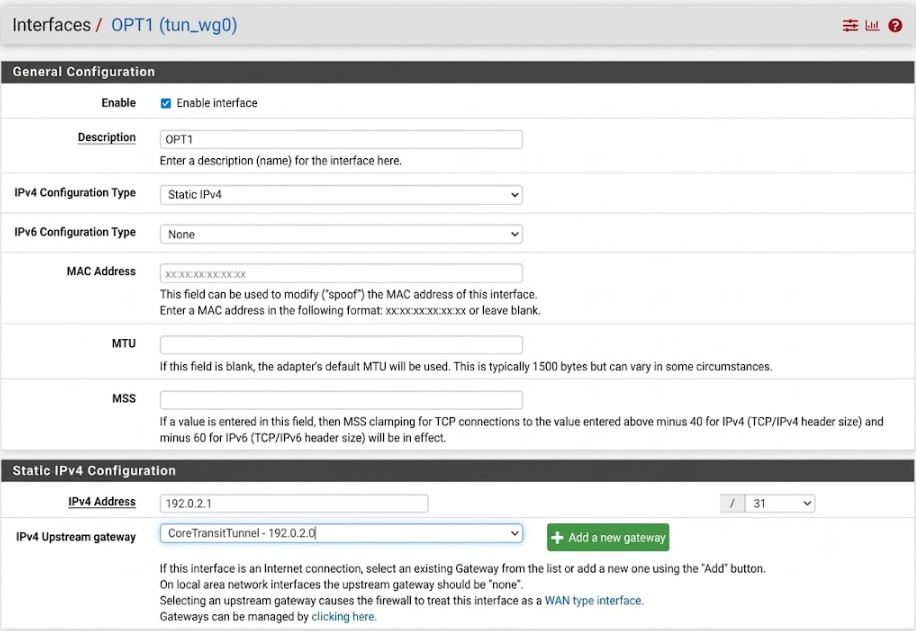
Configure the WireGuard Interface
Navigate to:
Interfaces → OPT1
Configure the assigned WireGuard interface.
| Setting | Value |
| Enable Interface | Enabled |
| IPv4 Configuration Type | Static IPv4 |
| IPv4 Address | Client tunnel address (/31) |
| IPv4 Upstream Gateway | Create new |
Save the configuration.
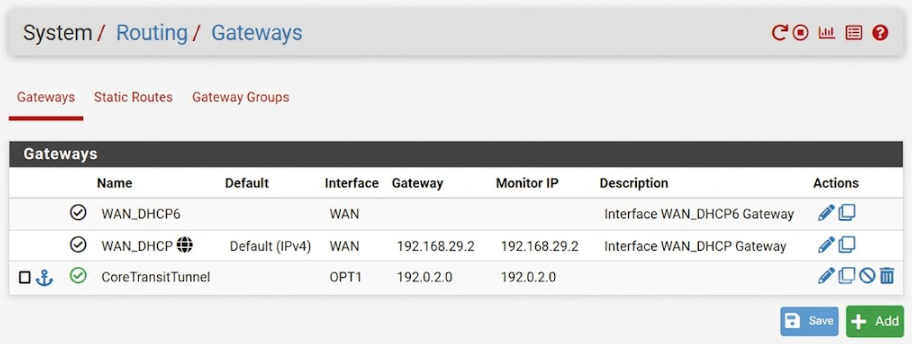
Create the WireGuard Gateway
When prompted to create a new gateway, configure it using the Core Transit tunnel.
| Setting | Value |
| Interface | OPT1 (WireGuard) |
| Gateway | Core Transit Tunnel |
| Monitor IP | Core Transit Tunnel |
Save the configuration. Double check the gateway is properly created by navigating to System → Routing → Gateways.
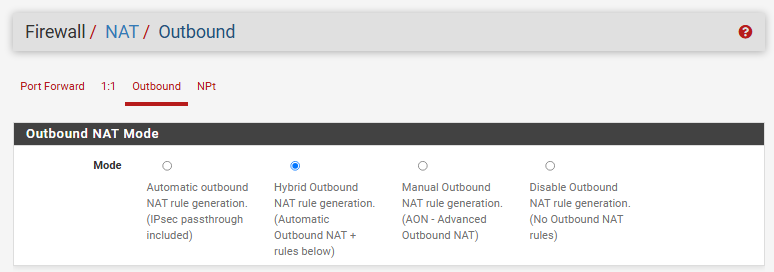
Configure Outbound NAT
Navigate to:
Firewall → NAT → Outbound
Change the Outbound NAT mode to:
Hybrid Outbound NAT
Create a new outbound NAT rule with the following settings.
| Setting | Value |
| Interface | WireGuard |
| Address Family | IPv4 |
| Protocol | Any |
| Source | LAN subnets |
| Destination | Any |
| Translation Address | Client facing WireGuard tunnel address |
Save the rule and apply the configuration. The created rule should look something like this:

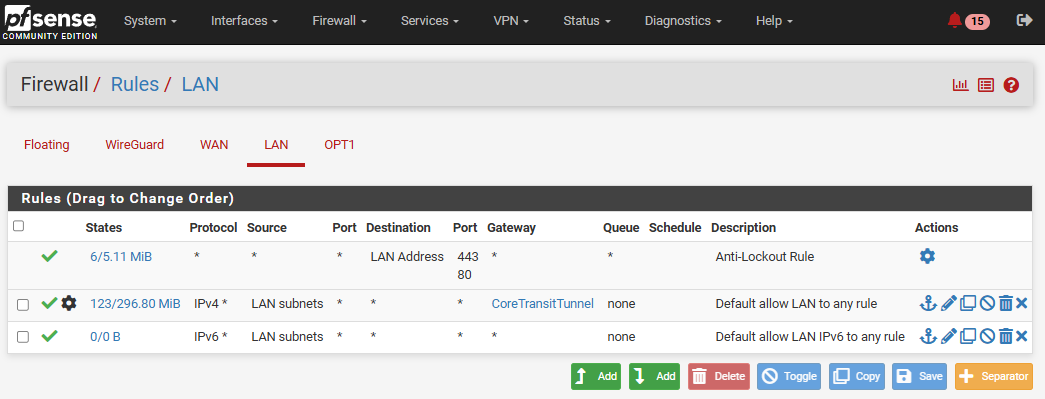
Configure Policy-Based Routing
Navigate to:
Firewall → Rules → LAN
Edit the default IPv4 LAN allow rule.
Under Advanced Options, configure the Gateway field to use the Core Transit WireGuard gateway created in the previous step.
Save the rule and apply the changes. Once the gateway has been changed the rules should look as follows:
Verify WireGuard Status
Navigate to:
Status → WireGuard
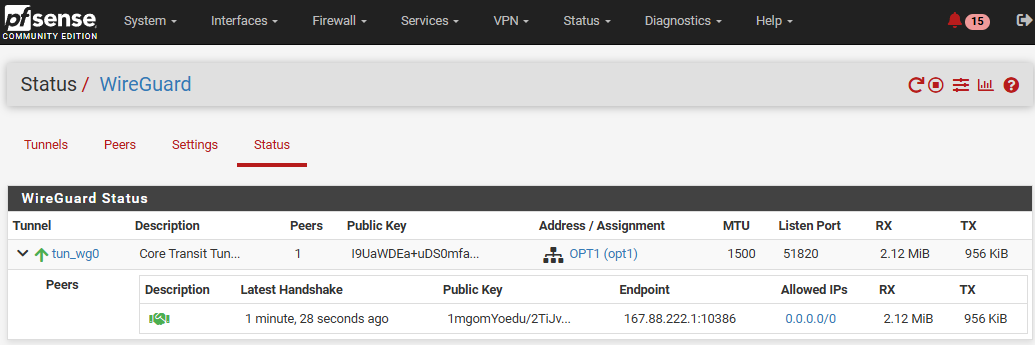
Confirm the following:
- Tunnel status is active.
- The latest handshake updates regularly.
- RX and TX counters continue increasing.
Verify Client Connectivity
Connect a client device to the pfSense LAN interface.
Verify that the client:
- Receives an IP address from the DHCP server.
- Has Internet connectivity.
- Successfully reaches external resources.
- Uses the Core Transit service as its outbound path.
Example verification commands:
ping 1.1.1.1
tracert 1.1.1.1
Configuration Complete
The pfSense firewall is now configured as a Core Transit WireGuard client using Policy-Based Routing. LAN client traffic is securely routed through the Core Transit tunnel while the firewall maintains normal operation and management connectivity.


