
Summary
This guide explains how to physically connect the Core Transit Big Network Edge Device to your network.
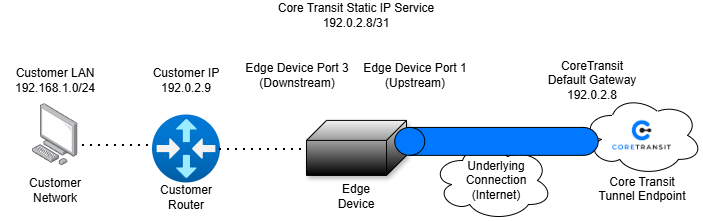
The Edge device acts as a simple layer 2 handoff connecting you back to a default gateway and L3 interface on the Core Transit router.
Identifying Your Edge Lite Hardware Version
The Edge Lite is available in two hardware revisions: 5S and 6S. The easiest way to identify which version you have is by examining the rear panel.
When viewing the rear of the device:
- Edge Lite 5S – The HDMI port is located on the far right of the rear panel.
- Edge Lite 6S – The HDMI port is located on the left side, directly adjacent to the USB-C power connector.
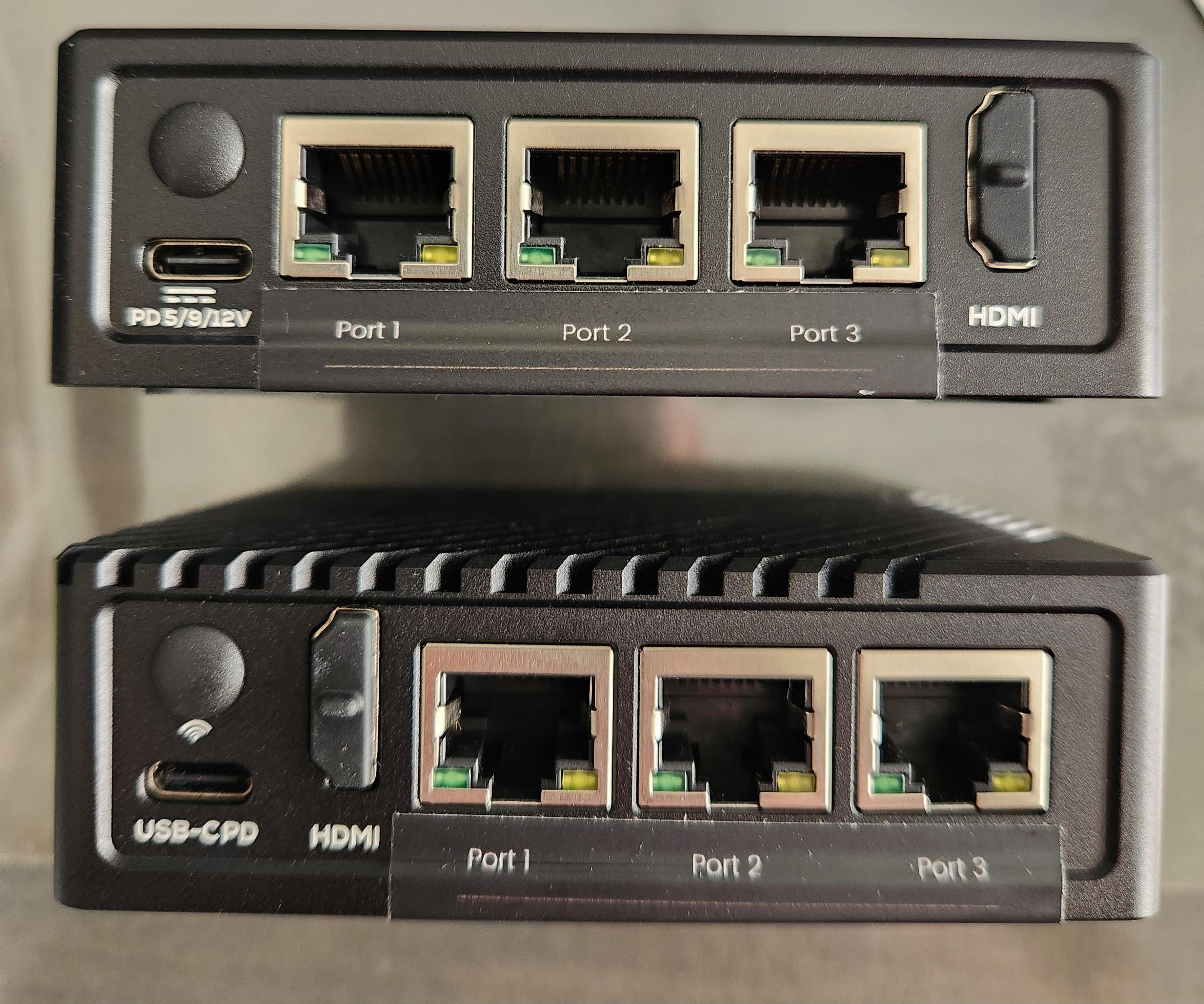
Rear panel comparison of the Edge Lite 5S (top) and Edge Lite 6S (bottom). The HDMI port location provides a quick method for identifying the hardware version.
Note: The Edge Lite 6S features an updated processor that provides improved overall system performance and higher throughput compared to the 5S model.
Port Layout
| Port | Purpose |
| Port 1 | Upstream Internet Connection |
| Port 2 | Reserved/Management |
| Port 3 | Customer WAN Connection |
Diagram
Installation Steps
- After removing the edge device from its packaging, identify the type of device, and identify each port on the device.
- Connect the ISP modem or upstream network to Port 1. Connect the power adapter to the device and let it boot.
- Connect Port 3 to the WAN port of your downstream router.
- Verify that the downstream WAN interface is using the IP information provided by Core Transit.
Navigating the Big Network Portal
Dashboard
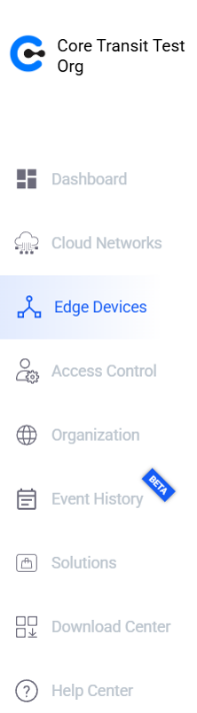 The Dashboard provides a high-level overview of your organization and connected Edge devices. From here, you can quickly view device status, access cloud-managed resources, and navigate to individual Edge devices for configuration and monitoring. This page is found in the expandable menu on the left side if the UI.
Edge Devices
The Edge Devices section displays all Edge devices associated with your organization. From this page, you can select a device to view its status, configure network settings, monitor performance, and perform maintenance tasks. It should look something like the screenshot below:

After selecting an edge device from the Edge Devices panel, additional tabs become available near the top of the UI.

Status
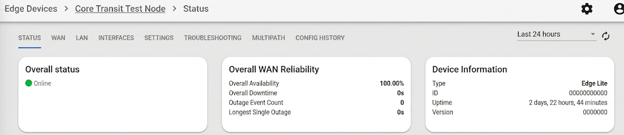
The Status page provides a real-time overview of the selected Edge device. It displays the device's operational status, uptime, software version, WAN traffic statistics, and interface health, making it the primary page for monitoring device performance.
WAN
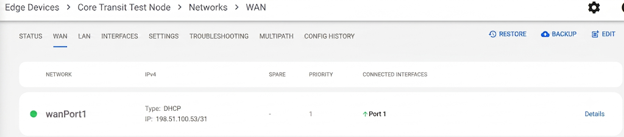
The WAN page displays the configuration and status of the device's Wide Area Network (WAN) connections. Here you can view the assigned IP address, connection type, interface assignments, and link status to verify Internet connectivity.
LAN
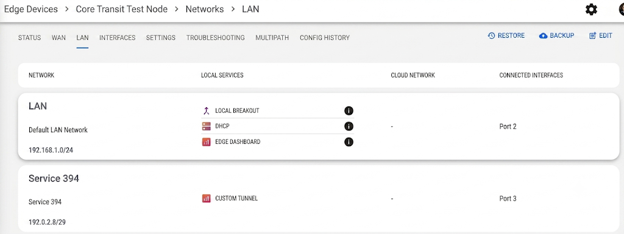
The LAN page displays the local networks configured on the Edge device. It provides information about LAN subnets, connected interfaces, and local services such as DHCP, allowing you to verify and manage your internal network configuration.
Interfaces
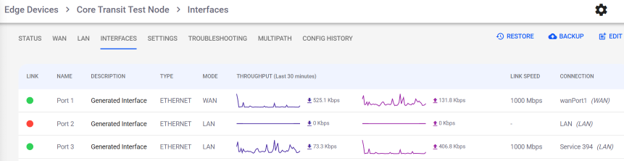
The Interfaces page provides detailed information for each physical network port on the Edge device. It displays link status, operating mode (WAN or LAN), connection assignments, link speed, and real-time throughput, making it a valuable tool for troubleshooting connectivity and performance issues.
Settings
The Settings page contains general device configuration and maintenance options. From this page, you can modify the device name and location, configure advanced system settings, and manage firmware updates and maintenance schedules.
Conclusion
At this point, the Edge device should be physically installed, connected to the upstream Internet, and linked to the WAN interface of your downstream router. You should also be familiar with the Big Network Portal and the primary pages used to monitor the device and verify its operation.
To confirm a successful installation:
- Verify that the Edge device appears Online in the Status page.
- Confirm that the WAN page displays the IP address assigned by Core Transit.
- Verify that the Interfaces page shows active links on the appropriate ports.
- Ensure that your downstream router can communicate with the Core Transit Tunnel Endpoint.
Once these steps have been completed, the Edge device has been properly deployed.


