
Summary
A common question when validating a Core Transit tunnel is: "how much is the tunnel actually affecting my speed?" The most reliable way to answer this is to run two speed tests — one while a device is routed through the tunnel, and one while it's routed through the normal WAN connection — using the same test server for both. Testing against the same server removes an entire variable (server distance/load) from the comparison, so any difference you see is much more likely to come from the tunnel path itself rather than from the test picking a different server each time.
This guide covers how to confirm which path a device is currently using, how to lock in a consistent server using a speed testing website such as testmy.net, and how single-stream vs. multi-stream testing can reveal different things about tunnel performance.
Use Cases
- Verifying tunnel performance after initial setup
- Diagnosing slow speeds and determining whether the tunnel or the underlying ISP connection is the cause
- Supplying performance data for a support ticket
- Comparing performance before and after a configuration change, server change, or provider change
Confirming Whether a Device Is Inside or Outside the Tunnel
Before testing, confirm which path the device is actually using.
The quickest check is an IP lookup site, such as whatismyip.com. Visit it from the device you're testing:
- If the returned IP matches your Core Transit tunnel/public IP, the device is routed through the tunnel.
- If the returned IP matches your normal ISP-assigned IP, the device is on the standard WAN path.
Manually Selecting a Server on testmy.net
By default, testmy.net will ping each of its servers to determine the lowest latency server. That's a problem for this comparison — the "nearest" server can be different depending on whether you're routed through the tunnel or through your ISP, which reintroduces the exact variable you're trying to eliminate.
To fix this, select a server manually:
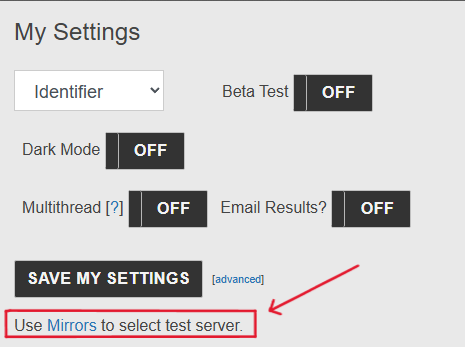
- On testmy.net, click on “My Settings”
- Then click on “Use Mirrors to select test server.”
- Testmy.net will start automatically pinging to find the lowest latency server
- Use that same server for both the inside-tunnel and outside-tunnel runs.
The page will look something like this:
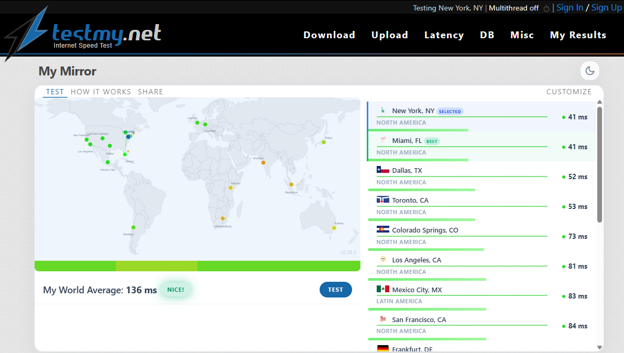
If a server that was available on one path isn't available on the other (this can happen if the tunnel exit point is in a different region than your ISP), pick the closest equivalent and note the substitution when recording results.
Single Stream vs. Multiple Stream Testing
Testmy.net also lets you choose between single-stream and multi-stream (multi-connection) testing, found in the “My Settings” page we visited earlier.
Note that the multi-stream option is labeled as “Multithread”.
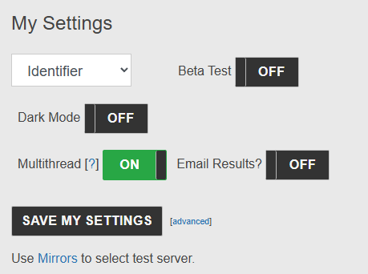
- Multi-stream — opens several parallel connections to the test server. This shows best-case throughput and is closer to what you'd see downloading a large file across multiple threads.
- Single-stream — uses one connection only. This is closer to real-world usage like a single download, a video call, or an online game, and tends to be more sensitive to per-connection overhead — including anything the tunnel itself adds, such as WireGuard encapsulation overhead or MTU/MSS mismatches.
Because single-stream and multi-stream can respond differently to the same tunnel, it's worth running both modes on each side of the comparison rather than picking just one.
Interpreting Results
A healthy tunnel comparison typically looks like this:
- Some increase in latency is expected — traffic is taking a longer physical path through the tunnel.
- Throughput (both single and multi-stream) should stay reasonably close between inside and outside, absent a specific bottleneck.
Watch for these signs of a problem:
- A large jump in packet loss or jitter when routed through the tunnel.
- Single-stream throughput cratering while multi-stream stays fine — this pattern often points to an MTU/MSS mismatch rather than a bandwidth issue, since multiple streams can partially compensate for per-connection overhead in ways a single stream cannot.
Conclusion
|
Test Variable |
Inside Tunnel |
Outside Tunnel |
What It Tells You |
|
Same Server |
✓ |
✓ |
Removes server-choice variability from the comparison |
|
Multi-stream |
(result) |
(result) |
Best-case throughput |
|
Single-stream |
(result) |
(result) |
Real-world, per-connection performance — more sensitive to tunnel overhead |
Testing both paths against the same server, in both stream modes, gives a clear picture of what the tunnel is actually costing you in performance — and helps separate a genuine tunnel issue from ordinary internet variability.


