
Managing Your Account
To update your email preferences, log in to your account at https://client.coretransit.net.
In the upper right-hand corner of the screen, select your username and the account settings dropdown. The Key options we will discuss are available here. 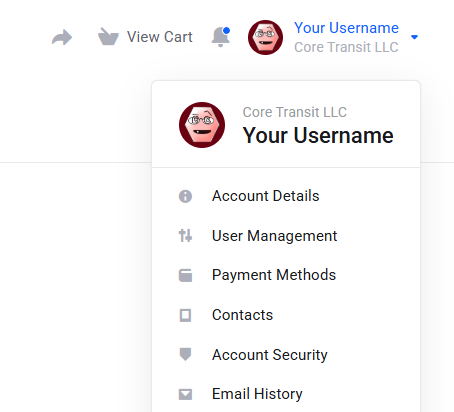
Updating Account Preference
Personal & Billing Preferences
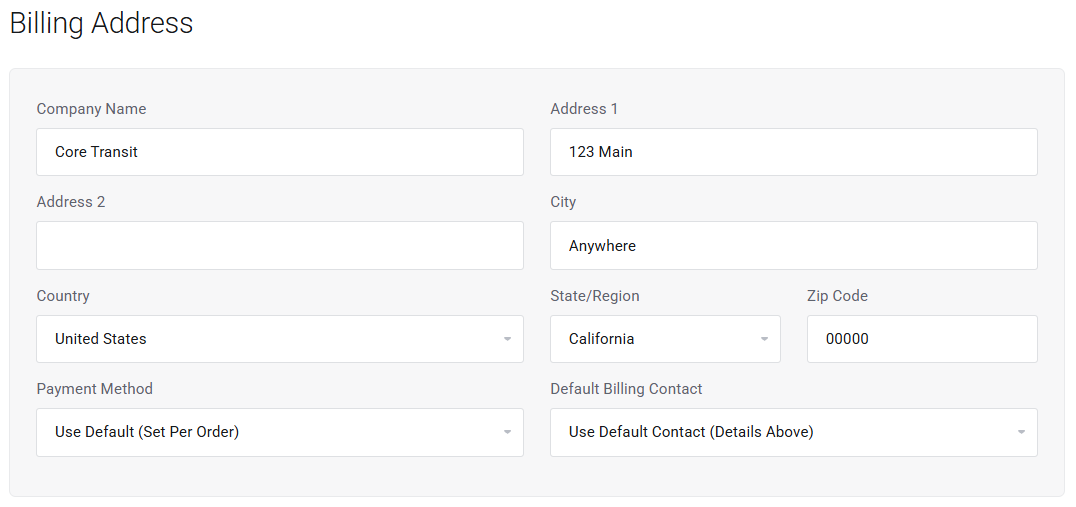
Billing Preferences are the first section under account details. This includes your name, email, billing address, and default payment details. The Core Transit billing system requires an automated payment option when setting up an account online, but can be set to "manual" to allow for payment by Check or ACH as well. If you would like to pay invoices manually, please open a case, and we will update this for you. You can see the billing options listed below.
Email Preference
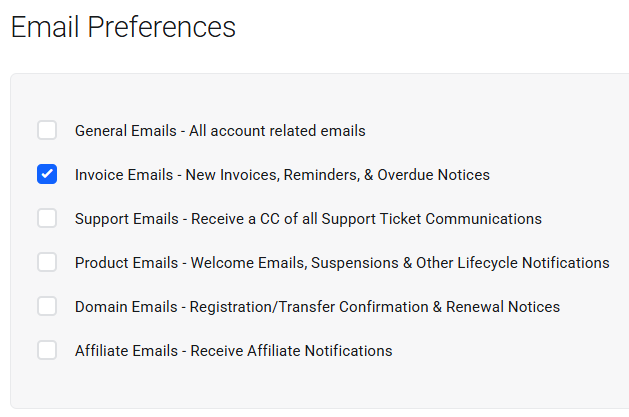
If you scroll down further on the same profile settings page, you will find your email preferences. Use this section to set which notification emails you would like to get. Someone in accounting my only need invoice and billing emails, while an administrator will want all service notifications, etc.
Adding Users
To add users, select the "User Management" option from the user drop-down at the upper right of the screen. When you open this screen, you will see a list of the current users you have access to the account. Additionally, you can edit or remove other users on the account if you're the account owner. 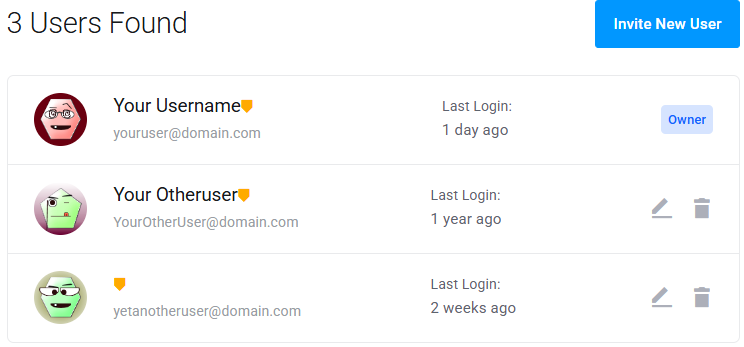
If you would like to invite a new user, you can select "Invite New User" to have the system send a new invite to a user based on his or her email address. The invite screen takes just an email and allows you to grant all or only specific account permissions, as you can see below. 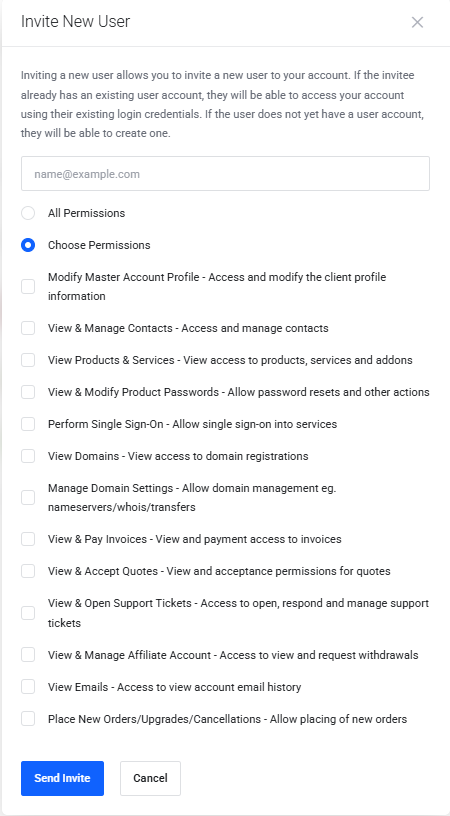
Accepting an Email Invite
Accepting an email invite to join the Core Transit account system is initiated when the system-generated email is first received.
A new user will receive an email from the Core Transit system and be prompted to click through to complete their profile setup with a message similar to the one shown below.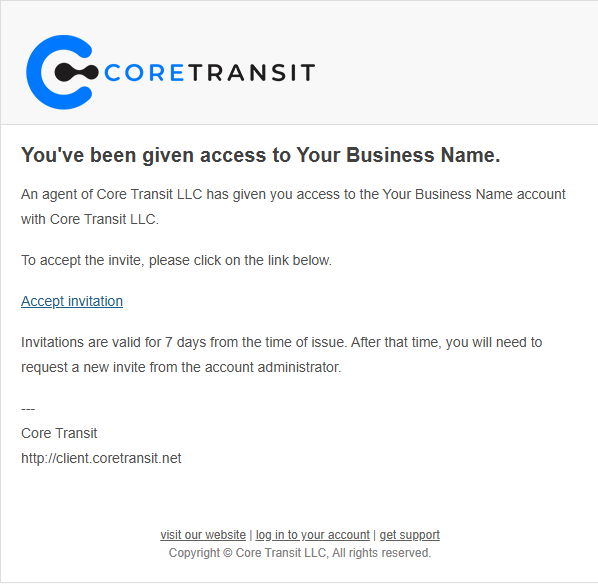
After clicking through the https://client.coretransit.net webpage will open to to the registration window shown below. After clicking "Accept Invite" you can select "Register" to setup a new account. 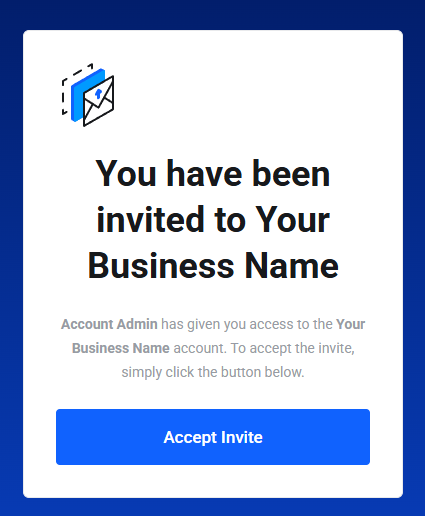
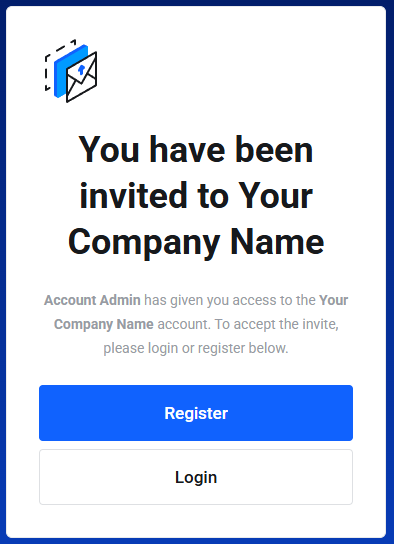
Complete the details for your account in the next step. You will need to be sure to set up a password as well to access the account. Be sure to store this information securely to safeguard your account. 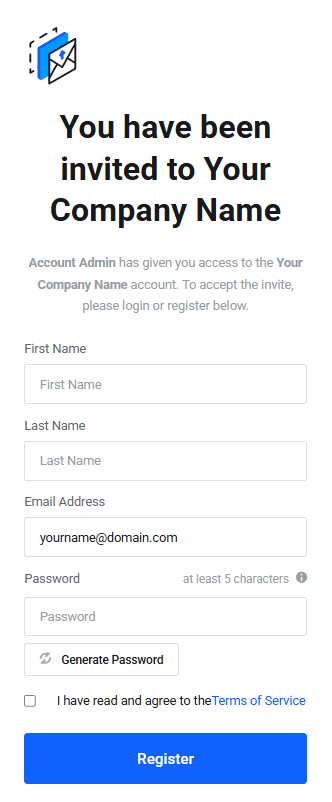
With this information, you will be able to log in to your account with the permission level granted by the account owner.


